Mymind Extension setup
2025-02-14
This is a guide on setting up the mymind raycast extension that I made. my mind doesn't have a public api for now so in order to authenticate your account for third party tool access, you need grab your access token from the website after logging in and put it in the extension. I'll provide an step by step guide on this since not everyone is used to grabbing tokens from network requests.
my mind doesn't support a public api and this might be breaking their terms of use. We're not necessarily doing anything harmful or illegal but we're also not using an official api so use the extension and this instruction if you're comfortable with that.
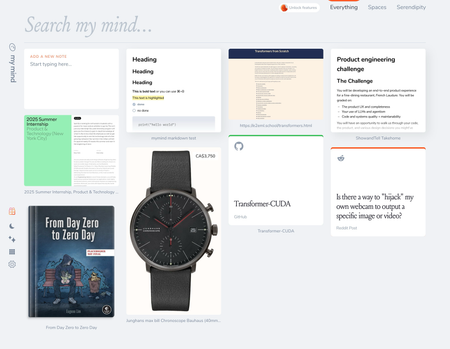
Go to https://access.mymind.com/everything and login into your account. You should be on this page.
Go to networks tab in the developer tools. You can use
cmd(ctrl) + option(alt) + Iorcmd(ctrl) + option(alt) + EDepending on the browser and OS to open the networks tab. You should see something similar to following :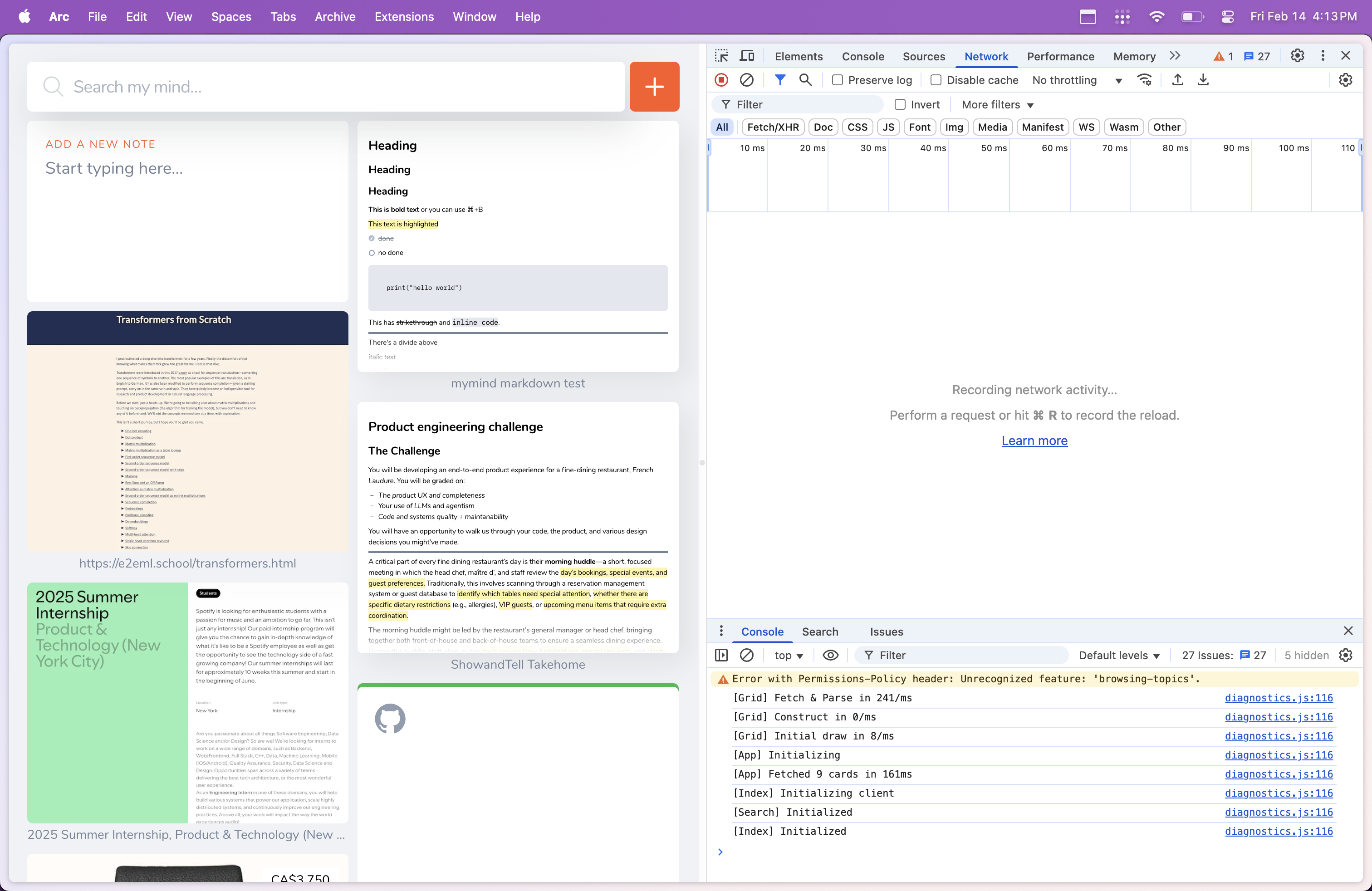
Filter for
cards.jsonand refresh the webpage. You should see the following request.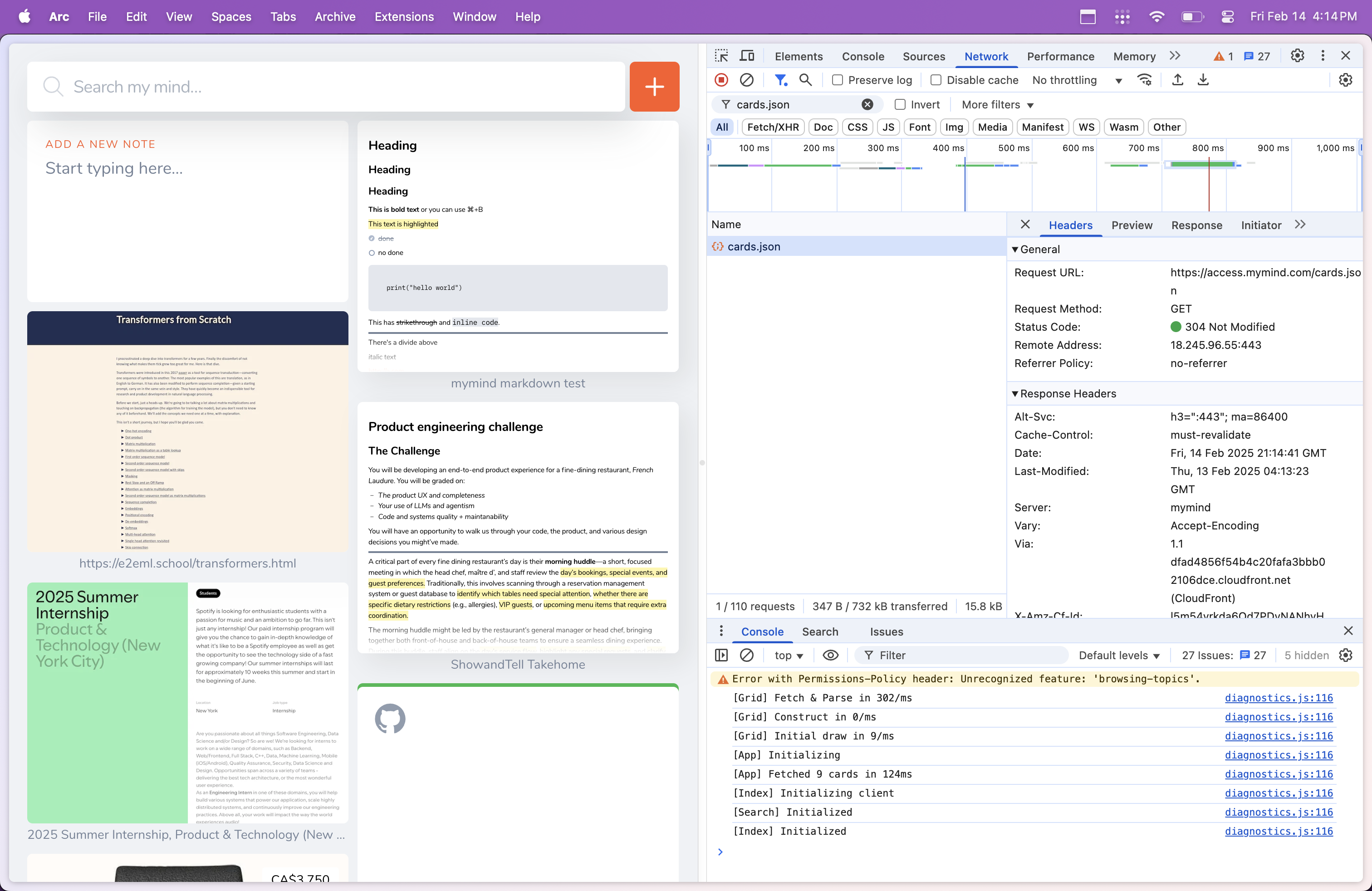
Click on the request and go to the
Headerstab. Scroll down until you find the following 3 values in theRequest Headerssection.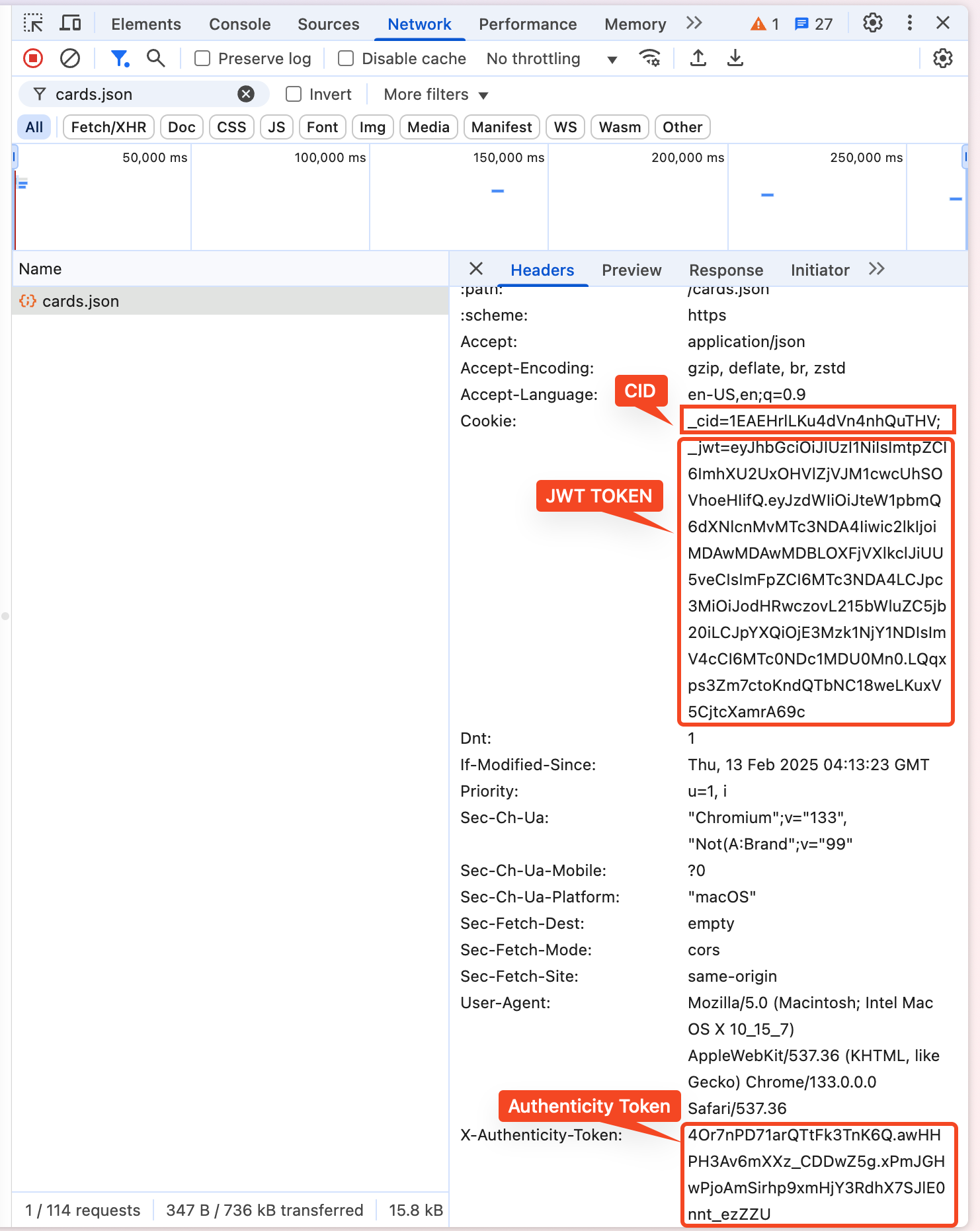
Paste the value after
=sign in the Raycast extension setup menu. and press continue.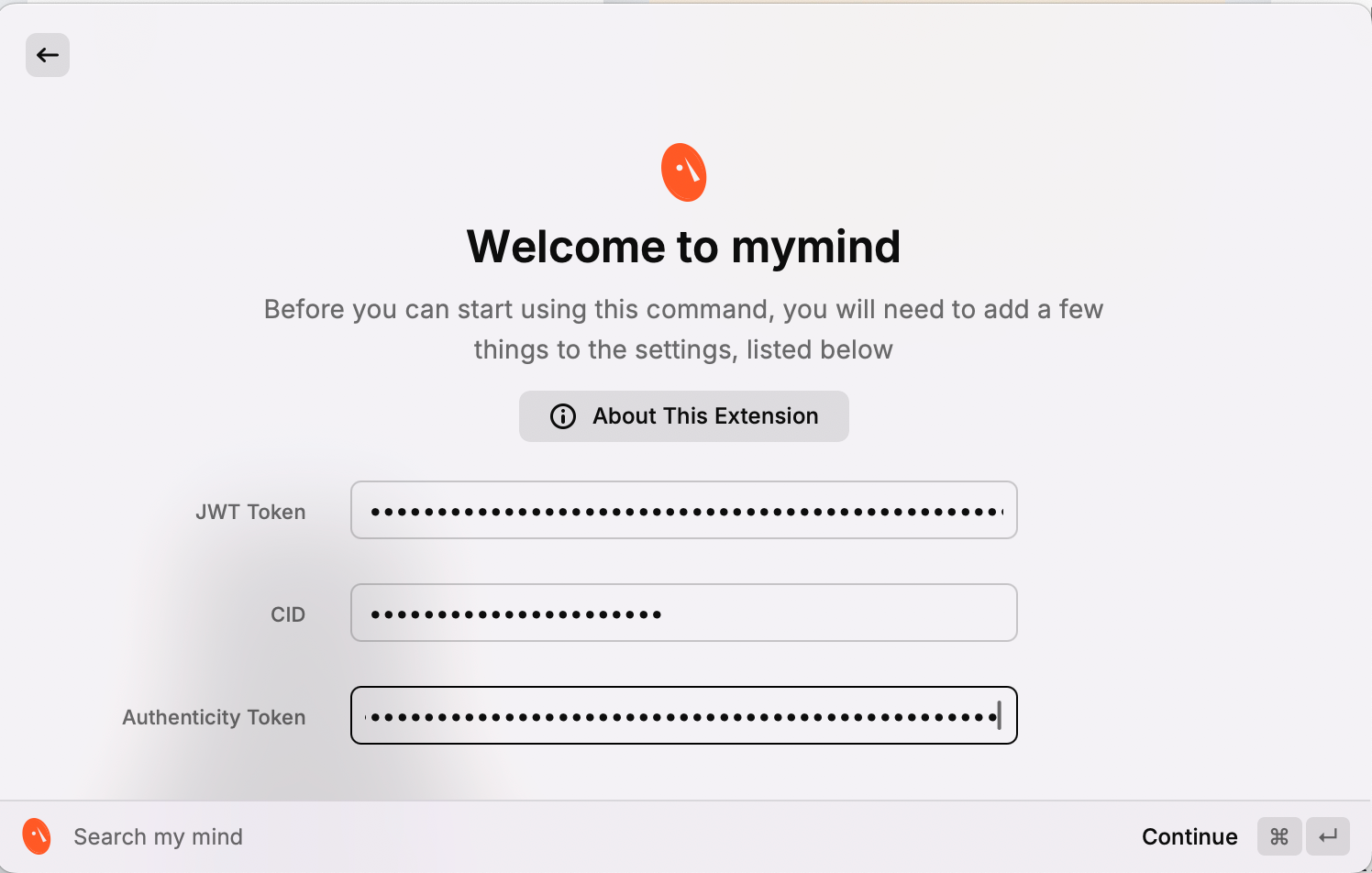
If you have followed the instruction successfully, you should be redirected to the extension page with your my mind notes loaded.
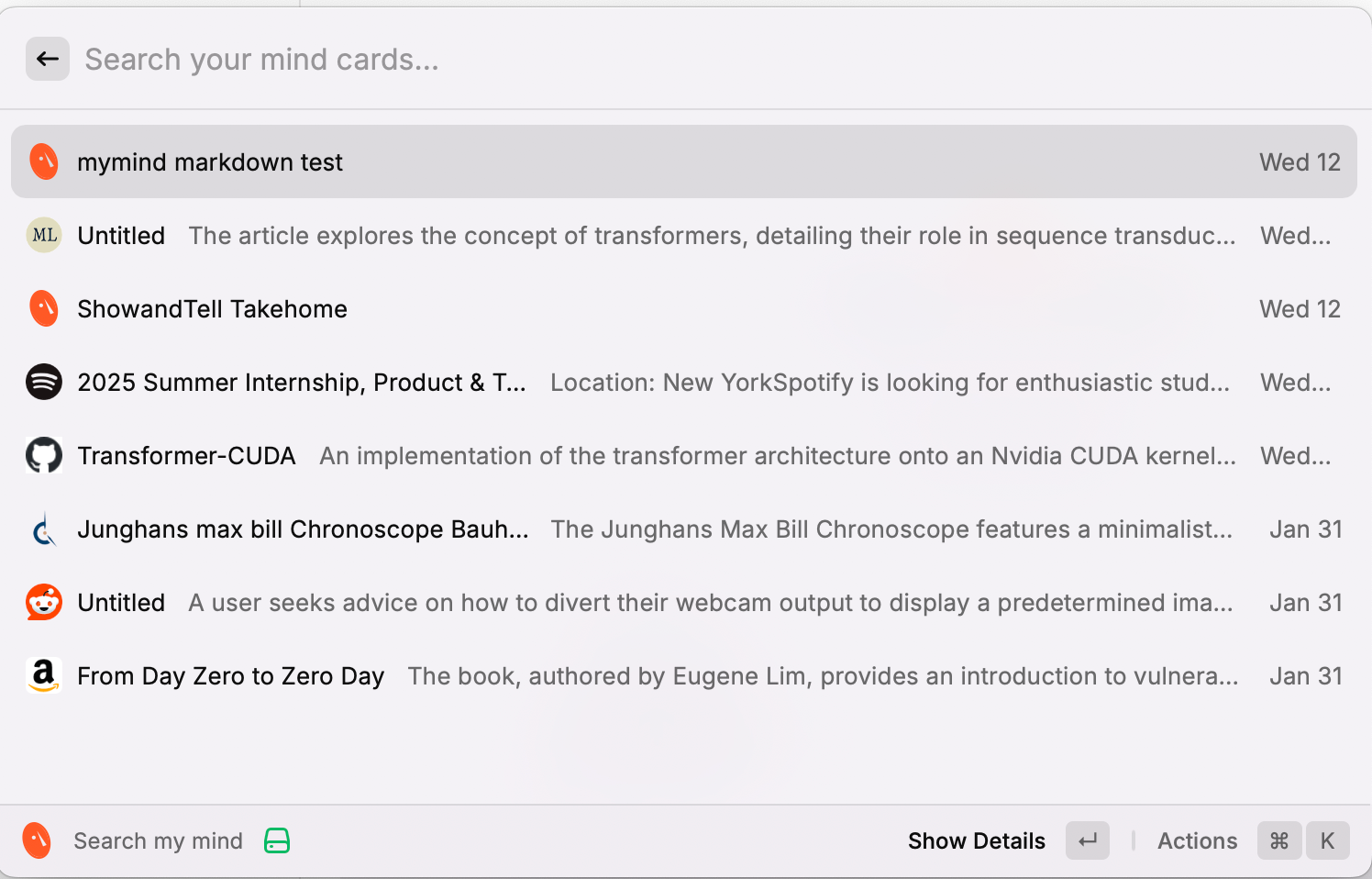
Congratulations! Enjoy my mind in Raycast 🎉🎉🎉